6  Introduction to git and GitHub

Git is a version control system that you install on your local machine. It helps you create a record of changes that you make to files in a specific repository where git is initialized. The git software stores earlier versions of your repository content in a hidden directory called .git.

Git works great for working with plain text files, such as .txt, .md, .qmd, .csv. With such files, git can provide you with an overview of changes or diffs that have occurred between two versions of the file. Other file types, such as .docx or .xlsx, are also tracked by git, but changes are not human-readable in the git system.

Git can be set up to communicate with an online repository. There are several alternatives for online hosting of version-controlled repositories, but GitHub is a popular alternative in the science community (Chen, Toro-Moreno, and Subramaniam 2025; Blischak, Davenport, and Wilson 2016; Ram 2013). GitHub offers online hosting and tools for collaboration.

To enable version control and collaboration, you must therefore have git installed and an active GitHub account.

6.0.1 Accounts and git-to-GitHub integration

Git can be installed from https://git-scm.com. Git requires no additional account information or software. To enable RStudio to act as a Git client, you must specify the location of your Git installation. This is done under Tools > Global options > Git/SVN.

Your local version history maintained by git can be controlled from your terminal window. However, to connect to GitHub’s online services, you will need to set up git with your GitHub account. The easiest way to do this is to use the GitHub CLI which is a command-line interface to GitHub that makes it easy to authenticate and communicate with GitHub from your terminal. Install GitHub CLI here and run gh auth login in your terminal to set things up.

6.0.2 Local git edits

As already mentioned, git stores a record of changes to files in a given repository. A repository is a directory in which you have initialized git. We can do this in any directory using the command line by typing

git init

in our terminal. If you initialize a git (version control) project using RStudio it will run this command for you. You may check that you have initialized the version control system by typing

git status

You make decisions on what files to add to your version history and when to do so. A file, let us say file-a.txt is added to the staging area with the command

git add file-a.txt

The staging area is where files are kept until you commit a snapshot of them into the version history. We could also stage all files that have changes made to them by typing

git add -A

The next step is to commit changes. A commit is a snapshot of the repository or files at a given moment. We perform a commit after staging files.

git commit -m "my commit message"

The -m "my commit message" adds a short commit message to the commit. This should be a description of the changes made to the repository. A longer commit message can be added by only initializing a commit using git commit. This command will bring up a dialog in your terminal, allowing you to enter a short message on the first line. After leaving one blank line, a longer commit message can be added.

When a file has been committed to the version history, it is marked as unmodified until you make changes to the file. Modified files can again be staged (e.g. git add <file>) and committed.

Files that are tracked by mistake can be un-tracked without being removed using

git rm --cached <file>

This leaves the file in your local folder but removes it from the repository. Using git rm <file> removes the file from disc.

A local git “edit cycle” is shown in Figure 6.1.

Code
library(ggplot2); library(ggtext)

ggplot(data.frame(x = c(0,1), y = c(0,1)), aes(x, y)) + 
  
  scale_y_continuous(limits = c(0.3, 1)) +
  
  # Workspace
  geom_rect(aes(xmin = 0.01, 
            xmax = 0.6, 
            ymin = 0.35, 
            ymax = 1), 
            fill = "steelblue", 
            alpha = 0.2) +
  
  geom_rect(aes(xmin = 0.02, 
            xmax = 0.3, 
            ymin = 0.35, 
            ymax = 0.92), 
            fill = "steelblue", 
            alpha = 0.2) +
  
  geom_rect(aes(xmin = 0.31, 
            xmax = 0.58, 
            ymin = 0.35, 
            ymax = 0.92), 
            fill = "steelblue", 
            alpha = 0.2) +
 
    annotate("richtext", 
           x = c(0.02, 0.32),  
           hjust = 0,
           y = 0.89, 
           label = c("*Untracked*", "*Tracked*"),
           fill = NA, label.color = NA) + 
   
  
  annotate("richtext", 
           x = 0.02, 
           y = 0.97, 
           label = "**Workspace**",
           hjust = 0,
           size = 8, 
           fill = NA, label.color = NA, # remove background and outline
          label.padding = grid::unit(rep(0, 4), "pt")) + # remove padding) +
  
  # Stage area
  geom_rect(aes(xmin = 0.61, 
            xmax = 1, 
            ymin = 0.35, 
            ymax = 1), 
            fill = "purple", 
            alpha = 0.2) +


    annotate("richtext", 
           x = 0.62, 
           y = 0.97, 
           label = "**Staging area**",
           hjust = 0,
           size = 8, 
           fill = NA, label.color = NA, # remove background and outline
          label.padding = grid::unit(rep(0, 4), "pt")) + # remove padding) +


  ## Labels and arrows
  
    
  annotate("segment", y = c(0.85, 0.85), 
                   yend = c(0.85, 0.82),  
                   x = c(0.1, 0.9), 
                   xend = c(0.9, 0.9), 
                   arrow = arrow(length = unit(c(0, 2.5), "mm"), type = "closed")) +


  geom_label(aes(x = 0.62, y = 0.85 , label = "<file>"), 
             hjust = 0) +
  
  
  geom_label(aes(x = 0.02, y = 0.85 , label = "Add file `git add <file>`"), 
             hjust = 0) +
  
  
   annotate("segment", 
            y = c(0.8,0.75), 
            yend = c(0.75, 0.75), 
            x = c(0.9,0.9), 
            xend = c(0.9, 0.48), 
            arrow = arrow(length = unit(c(0, 2.5), "mm"), type = "closed")) +


       annotate("segment", 
            y = c(0.75, 0.7), 
            yend = c(0.7, 0.7), 
            x = c(0.35, 0.35), 
            xend = c(0.35, 0.4), 
            arrow = arrow(length = unit(c(0, 2.5), "mm"), type = "closed")) +


  geom_label(aes(x = 0.65, y = 0.8 , label = "Commit file `git commit -m 'msg'`"), 
             hjust = 0) +
  

    geom_label(aes(x = 0.31, y = 0.75 , label = "Edit unmodified     "), 
             hjust = 0) +


     annotate("segment", 
            y = c(0.7, 0.7), 
            yend = c(0.7, 0.67), 
            x = c(0.5, 0.9), 
            xend = c(0.9, 0.9), 
            arrow = arrow(length = unit(c(0, 2.5), "mm"), type = "closed")) +
  
  
      geom_label(aes(x = 0.8, y = 0.7 , label = "<file>"), 
             hjust = 0) +


      geom_label(aes(x = 0.40, y = 0.7 , label = "Stage modified `git add <file>`"), 
             hjust = 0) +


      annotate("segment", 
            y = c(0.65,0.65), 
            yend = c(0.65, 0.62), 
            x = c(0.8, 0.35), 
            xend = c(0.35, 0.35), 
            arrow = arrow(length = unit(c(0, 2.5), "mm"), type = "closed")) +
  
    geom_label(aes(x = 0.65, y = 0.65 , label = "Commit file `git commit -m 'msg'`"), 
             hjust = 0) +


  ## Possible routs from unmodified
  
  ## Modify and commit 
  ## Remove (untrack)
         annotate("segment", 
            y = c(0.6, 0.6), 
            yend = c(0.6, 0.54), 
            x = c(0.4, 0.4), 
            xend = c(0.70, 0.4),
            lty = 2,
            arrow = arrow(length = unit(c(2.5, 2.5), "mm"), type = "closed")) +
  ## File in staging area
         geom_label(aes(x = 0.75, y = 0.6 , label = "<file>"), 
             hjust = 0.5) +


  ## Untrack file
       annotate("segment", 
            y = c(0.5), 
            yend = c(0.5), 
            x = c(0.4), 
            xend = c(0.1), 
            lty = 2,
            arrow = arrow(length = unit(c(2.5), "mm"), type = "closed")) +
  
      geom_label(aes(x = 0.31, y = 0.60 , label = "Unmodified    "), 
             hjust = 0) +


    ## Remove file (delete)
       annotate("segment", 
            y = c(0.5), 
            yend = c(0.33), 
            x = c(0.4), 
            xend = c(0.4), 
            lty = 2,
            arrow = arrow(length = unit(c(2.5), "mm"), type = "closed")) +
    
      annotate("label", 
             x = 0.31, y = 0.5 , 
             label = "Untrack file\n`git rm --cached <file>`",

             hjust = 0) +
  
  ## File in trash
        geom_label(aes(x = 0.4, y = 0.30 , label = "<file>"), 
             hjust = 0.5) +
  
  
  ## File untracked
     geom_label(aes(x = 0.06, y = 0.5 , label = "<file>"), 
             hjust = 0.5) +
  
  
    geom_label(aes(x = 0.31, y = 0.40 , label = "Delete file from disc\n`git rm <file>`", 
             hjust = 0)) +


  theme_void()
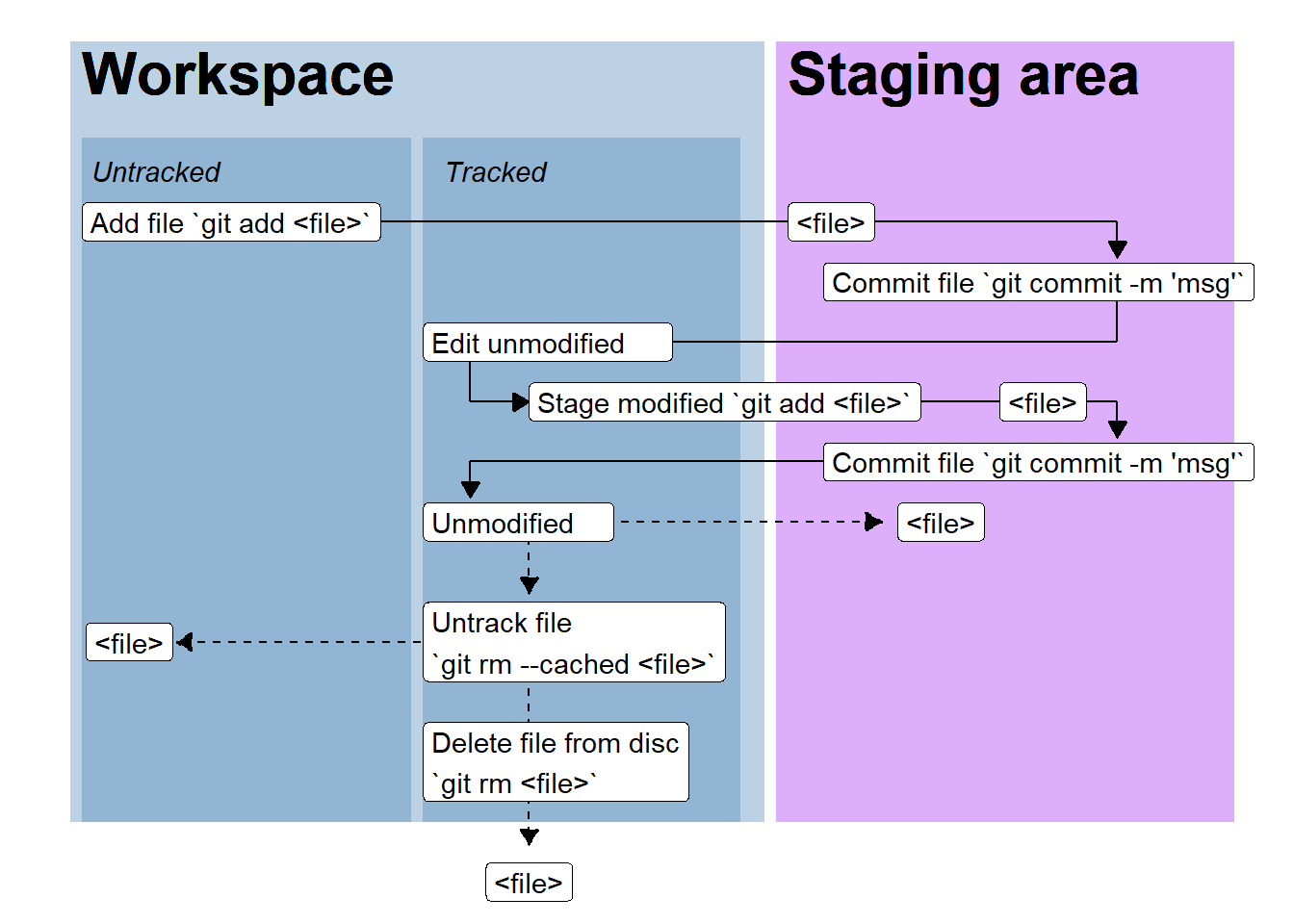
Figure 6.1: A cycle of local git edits. A files is added to the staging area by git add <file> and comitted to the local repository by git commit. The file is edited and is marked as modified after which it is staged (git add <file>). Again, staged modifications are commited and the file is once again marked as unmodified until edited. Files may be untracked from the repository or deleted from disc using git rm with or without the --cached option.

6.1 Local and online git usage

Your local git folder can be connected to an online repository. The online repository, or remote, is the repository in which you collaborate with others. The online repository can be set up as a starting point for your project or created from the command line in an already initialized git repository using GitHub CLI.

6.1.1 Starting with GitHub

After logging on to GitHub, select New, or go to github.com/new. This will bring you to a form that will help you create your repository. You need to give it a name, describe it, decide if you want to initialize with a README file (you want to do that), and choose a license. Once all this is done, you will be able to copy the HTTPS address that you find under Code in your repository in GitHub. The HTTPS address is then entered in the New Project Dialog in RStudio after selecting Version Control under the different project types.

You have now initialized a remote repository and then cloned it to your computer as a local copy. You may now make changes to the project and add/commit these to your local version history.

6.1.2 Starting with a RStudio project

When starting a new RStudio project without version control, you have the possibility to initialize git in the dialog box. If you decide not to do this, the next step should be to write git init in your terminal to initialize git in your current project folder.

We can now create a remote repository using GitHub CLI with the command gh repo create. If this command is used without any subcommand, you will be guided through the process on the command line. If you have your project running and want to use it to create a repository on GitHub you should select “Push an existing local directory to GitHub”. You will be asked:

  • The path to your local repository (defaults to ., the current directory)
  • The name of the repository (defaults to your local folder name)
  • If the repository should be private or public.
  • A description of the repository (A short description of what the repository contains)
  • If a remote should be added (Yes)
  • What the remote should be called (Default to origin)

If successful, you will get a message telling you that the remote has been added. Your GitHub profile will now have a repository acting as the remote for your local repository.

6.2 Local to remote workflows

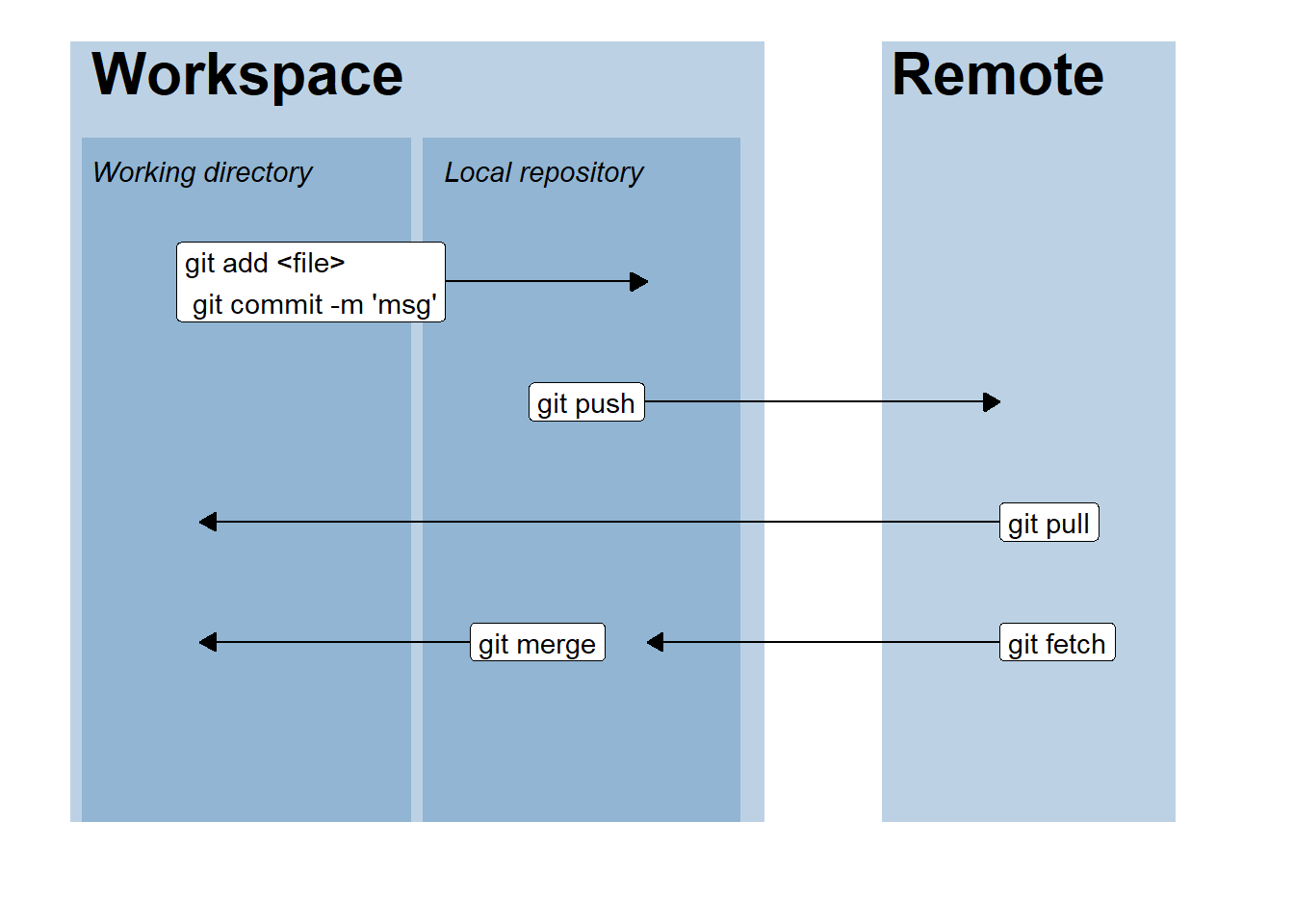
The basic workflow (Figure 6.2) for updating and downloading from the remote repository can include git push to push all local commits to the remote. This will update the remote with any changes you have committed to the version history. When the remote has been changed, you can download these changes in two ways. First, git pull downloads all changes and directly overwrites your local files, updating them to their latest versions. This also includes the removal of files and the addition of new files. Alternatively, you want to have more control over what is going into your local repository. In that case, you can use git fetch, which updates the local repository, but not your working directory.

To review changes made to the remote repository without merging, you can do git log HEAD origin/main, where “git log” is the basic command to inspect the latest commit message on the most recent version (HEAD) of the remote repository (“origin/main”). You could also inspect the actual change. Using git diff HEAD origin/main, we get an overview of all changes made to all files in the remote repository compared to the local repository. To do this for a specific file, for example, README.md, we can use git diff HEAD origin/main -- README.md.

Using git merge, after git fetch, you will merge downloaded versions of files from the remote with your working directory. git fetch and git merge can thus be a way to continue working on files while updating your repository with the latest changes. The shortcut for doing git fetch followed by git merge is git pull, as this command does both without the middle step.

After a git pull, we may still inspect what changed. Using git diff, we can compare the most current version to the parent commit, or the commit before the current version. To do this, we write git diff HEAD~1, which will give us a comparison between the “HEAD” (the current state of the repository) and “HEAD minus 1” (one commit behind the HEAD). Using HEAD~2 will do the comparison with the commit two levels up from the HEAD.

Code
ggplot(data.frame(x = c(0,1), y = c(0,1)), aes(x, y)) + 
  
  scale_y_continuous(limits = c(0.3, 1)) +
  
  # Local working directory / Repository
  geom_rect(aes(xmin = 0.01, 
            xmax = 0.6, 
            ymin = 0.35, 
            ymax = 1), 
            fill = "steelblue", 
            alpha = 0.2) +
  
    geom_rect(aes(xmin = 0.02, 
            xmax = 0.3, 
            ymin = 0.35, 
            ymax = 0.92), 
            fill = "steelblue", 
            alpha = 0.2) +
   
  geom_rect(aes(xmin = 0.31, 
            xmax = 0.58, 
            ymin = 0.35, 
            ymax = 0.92), 
            fill = "steelblue", 
            alpha = 0.2) +
  
  # Remote repository
  geom_rect(aes(xmin = 0.7, 
            xmax = 0.95, 
            ymin = 0.35, 
            ymax = 1), 
            fill = "steelblue", 
            alpha = 0.2) +
 
 
    annotate("richtext", 
           x = c(0.02, 0.32),  
           hjust = 0,
           y = 0.89, 
           label = c("*Working directory*", "*Local repository*"),
           fill = NA, label.color = NA) + 
   
  
  annotate("richtext", 
           x = c(0.02, 0.7), 
           y = c(0.97, 0.97), 
           label = c("**Workspace**","**Remote**"),
           hjust = 0,
           size = 8, 
           fill = NA, label.color = NA) + # remove padding) 

  
      # Git add, commit
  # git push
  # git pull
  # git fetch / merge
       annotate("segment", 
            y = c(0.8, 0.7, 0.6, 0.5, 0.5), 
            yend = c(0.8, 0.7, 0.6, 0.5, 0.5), 
            x = c(0.1, 0.4, 0.8, 0.8, 0.4), 
            xend = c(0.5, 0.8, 0.12, 0.5, 0.12), 
            arrow = arrow(length = unit(c(2.5), "mm"), type = "closed")) +
    
      annotate("label", 
             x = c(0.1, 0.4, 0.8, 0.8, 0.35), 
             y = c(0.8 ,0.7, 0.6, 0.5, 0.5), 
             label = c("git add <file>\n git commit -m 'msg'",
                       "git push", 
                       "git pull", 
                       "git fetch", 
                       "git merge"),

             hjust = 0) +
  
  theme_void()
Figure 6.2: Local git commits can be pushed to a remote repository, this updates the remote with your local changes. If changes are made to the remote these can be pulled to the local reposotory and working directory. Git pull overwrites your local files in the working directory at the same time as updating the local version history. Git fetch downloads changes to your local repository without merging files. Git merge attempts to merge files in the working directory with the most recent changes from the remote repository.

6.2.1 Branches and pull requests

Sometimes changes to a repository can be expected to get big. Multiple files need updating, affecting numerous aspects of the repository. A large change to a project may break scripts or output in unexpected ways, so we want to ensure everything works before replacing the old with the new. Instead of implementing these changes incrementally in the main repository, we could create a new branch. A branch starts at a specific state of the repository and adds new history without affecting the main branch. When changes have been made to the branch, they can be incorporated into the main branch using a merge or as a pull request.

We can create a new branch using git branch <new branch name>, to create a new branch. This will create the branch but now switch to it. Switching between branches is done using git checkout <branch name>. If a branch is up to date with the main branch, it may be deleted (git branch -d <branch name>). If changes have been made, you will be asked if you really want to delete it. If we want to merge changes in the new branch with the main branch, we “checkout” the main branch (git checkout main), and merge with the other branch git merge <branch name>. After a merge, the branch can be safely deleted.

A branch can also be used in a pull request. To create a pull request, we first need to push the local new branch to the remote repository. If we have checked out the new branch, adding a new commit and are trying to push it to the remote, we will get a notification that current branch has no upstream branch. To push the local new branch to the remote we need to do git push --set-upstream origin <branchname>. This will create the new branch in the remote and push changes. A pull request is a feature of GitHub. To create pull requests on the command line, we will use GitHub CLI commands, starting with gh pr create (gh, activates GitHub CLI; pr, short for pull request; create, subcommand for initializing a pull request). This command will guide you through creating a pull request from the current branch, to the main branch. A pull request can be reviewed and merged online. GitHub provides a nice interface to inspect or discuss changes that are being made. After merging (or closing) the pull request we want to pull the latest updates to the local main and delete the new feature branch. We can delete the remote new feature using git push origin --delete <branchname>.

6.2.2 Forks and pull requests

Forks are copies of an online repository from one user to another user. This is useful when you want to contribute to a public repository but you do not have access to it. The basic workflow starts with creating a fork in the online GitHub interface. This will clone the repository to your user profile and make it easy to download the repository to a local project. After making edits (commits), you can issue a pull request from your GitHub profile.

6.3 Finding help on the command line

In the above discussion, we are using the command line. This might feel scary. In a day to day workflow, however, you will use a small number of commands making it easy to remember them. If you need help, often, you can use <command> --help to get a list of commands.

6.4 More features in GitHub: Issues and Pages

Issues are a feature of GitHub that allows for creating notes on potential improvements, bugs, etc. They can be accessed and edited using GitHub CLI using gh issue or in the GitHub web interface. These can be a good way to track progress in a project and keep notes of choices made in the analysis/writing process.

GitHub allows us to create websites from a repository. These websites will be accessible for anyone and provide us with an opportunity to publish, for example, supplementary material in a nice format. Quarto can be used to create webpages directly from the repository.